—————————————————————————————————-
 “Overall, ExperVision Recognition Toolkit (the OCR engine of ExperVision) performed the best in this year’s test (among OmniPage, …and other OCR software). “Overall, ExperVision Recognition Toolkit (the OCR engine of ExperVision) performed the best in this year’s test (among OmniPage, …and other OCR software). It demonstrated consistently highaccuracy. It performs especially well on proportional pitch text, and is least affected by low resolution (200 dpi). It also provides an excellent automatic zoning capability.” It demonstrated consistently highaccuracy. It performs especially well on proportional pitch text, and is least affected by low resolution (200 dpi). It also provides an excellent automatic zoning capability.”
UNLA is registered trademarks of University of Nevada Las Vegas |
—————————————————————————————————-
Directory
- OpenRTK 7.0 – ExperVision OCR SDK
- OpenRTK 7.0 Feature List
- Development Licensing Concept
- OpenRTK 6.0/7.0 Runtime Licensing
OpenRTK 7.0 – ExperVision OCR SDK
Our OpenRTK® 7.0 (Open Recognition Toolkit® ) is a C/C++ toolkit that provides an innovative solution to application developers, system integrators and OEM customers who need to integrate OCR capability into their applications with minimum engineering efforts.
The OpenRTK® (SDK) is based on ExperVision’s proprietary MLFA (Machine Learned Fragment Analysis) technology, which took more than 100 man-years to develop and refine.
The OpenRTK® consists of a recognition database (RTK .DB) that was built upon 8 million character samples collected from real world documents and 2,618 training fonts, dictionaries for the major Western languages and a run-time library (RTK .DLL) which contains more than 200 APIs that are well-defined for easy integration.
The “Open” concept makes ExperVision’s OCR enabling technology more accessible to application developers or system integrators, giving them a competitive advantage over any other competitor’s SDK.
To write your first OpenRTK® application, you will need:
- OpenRTK® 7.0. It includes RTK.H, RTK.LIB, RTK.DLL, RTK.DB and *.GENERAL.
- Microsoft Visual C++ 6.0 or above. Basic VC programming skill is required. If you are not familiar with VC, please refer to corresponding VC documentation first, and then start this tutorial.
OpenRTK 7.0 Feature List
- IMAGE ACQUISITION — “GETTING THE PAGE”
- LOCATING
- RECOGNIZING
- PROOFING INFORMATION
- EXPORT
- OPEN STRUCTURE
- MISCELLANEOUS
1. IMAGE ACQUISITION — “GETTING THE PAGE”
The OpenRTK® (SDK) can automatically read image files in the following formats and methods:
- Image format supported: PCX, DCX, PDF, BMP, TIFF Uncompressed, TIFF Packbits, TIFF Group 3, TIFF Group 4, JPEG.
- Each image can be read in any one of four orientations and rotated appropriately when read: Portrait, Landscape, Flipped Portrait, and Flipped Landscape.
- The OpenRTK® also provides developers with APIs to detect the orientation of an image, rotate automatically if necessary, and straighten any skewed images.
Note: If you use your own image reader, it is strongly suggested that you implement scan line doubling of standard resolution images
for better recognition accuracy.
Locating, the process of identifying and ordering the areas of text on a page, can be accomplished:
- Automatically, using the OpenRTK®’s built-in Locate features. This is useful when you want to automatically process a heterogeneous set of documents where the location of text to be recognized on each page is unknown.
- Manually, defining areas of text explicitly and ignoring the OpenRTK®’s built-in Locate features. This may be useful when trying to process a form, where the location of text to be recognized on each page is always the same.
Of course, it’s also possible to use the OpenRTK®’s built-in Locate features and then manually adjust those results. Text regions, whether they are the result of automatic or manual Locating, can be inserted, deleted, and modified. You can choose whether to locate pictures for better format preservation.
The OpenRTK® utilizes ExperVision’s exclusive MLFA technology with the ability to accurately recognize more than 2600 font types, supplemented with built-in and auxiliary (aka user) dictionaries. Recognizing options include:
- setting code page (ANSI or OEM)
- setting OCR language (now supports English, French, German, Italian, Spanish, Portuguese, Danish, Dutch, Swedish, Norwegian, Hungarian, Polish, Finnish and Polynesian, etc.)
- setting paper quality (DQDM or Letter, with or without degraded document recognition option)
- setting illegible character symbol
The OpenRTK® also recognizes and retains the following text attributes:
- text style (bold, italic, underline, superscript, and subscript)
- point size ( 6 to 64 points at 300 dpi)
- font family (serif, sans serif, or monospace)
The proofing step is, for the most part, a user interface (UI) function. Although the OpenRTK® has no UI elements, it provides information indicating the position, confidence level and candidates of each character (including the suspect and illegible) through the Open data structure.
The OpenRTK® furnishes conversions from its internal data model to various application file formats, utilizing its superior page format retention capabilities. Formats supported by the OpenRTK® include the following, although the availability of formats is dependent upon the platform.
- ASCII (Plain Text)
- ASCII with line breaks (Text with line breaks)
- Comma-delimited ASCII(Comma Delimited Text)
- Lotus 1-2-3 v2.x, 3.x
- Lotus Ami Professional v1.2, 2.0, 3.0
- Microsoft Excel v2.x, 3.0, 4.0
- Microsoft Rich Text Format (RTF)
- Microsoft Word for Windows (RTF)
- Native/TypeReader (can be opened by the OpenRTK® (SDK) for later proofing purpose)
- Native/TypeReader Text Only(can be opened by the OpenRTK® )
- “Smart” ASCII (Formatted Text)
- Tab Delimited Text
- WordPerfect 5.0
- WordPerfect 5.1, 5.2
- HTML (Internet ready!)
- Portable Document Format (PDF) (Normal, Image with Hidden Text, and Image only)
Features listed in this section are extremely useful for the advanced customers who want to combine the power of ExperVision’s OCR with other available technologies to enhance their competitive advantages in the market.
- Document structure
- Page structure
- Line structure
- Word structure
- Character recognition and alternatives
(Works with foreign recognition engine, e.g. ICR, Japanese OCR, or Chinese OCR)
- Iterative recognition with foreign recognition engine
- Page layout re-analysis based on foreign recognition
- TypeReader proofing format available to foreign recognition results
7. Powerful and Open API Design
Dynamic Link Library (DLL) or runtime format is provided in OpenRTK® . Application Programming Interface (API) access to all data, isolating the developer from internal design and code changes of OpenRTK® .
Over 200 APIs (Application Program Interfaces) and abundant analytical information of the document have been designed and opened to the calling applications, which support:
- Image Acquisition,
- Image Preprocessing,
- Layout Location,
- Content Recognition,
- Proofing Information,
- Result Exporting
- Format Conversion,
- etc.
Development Licensing Concept
Customer value received by Licensee
- Enables application developers to write, test, debug, and modify an application, using all of the APIs of OpenRTK®
- Customers can integrate the best OCR technology seamlessly with their own document management system, to target and compete in the fast growing market.
- Customers can customize the best OCR for their particular application, such as form processing, resume recognition, business card reader, invoice recognition, check recognition…
- Customers can enhance the recognition technology by integrating their own domain specific knowledge.
Licensee rights and obligation
- Licensee will be granted a non-exclusive and non-transferable OpenRTK® license for purpose of software development only.
- Licensee can make an archival copy of the OpenRTK® , the use of which shall be limited solely for back-up purposes.
- Since the OpenRTK® may be used only by Licensee for integration of the OpenRTK® with and into the Licensee Applications; Licensee needs to describe the application so that ExperVision can build the suitable OpenRTK® version for licensee.
ExperVision® rights and support
- ExperVision® owns certain proprietary computer software programs commonly known as the Recognition Toolkit. ExperVision owns certain proprietary materials and other documentation relating to the OpenRTK® .
- If Licensee requires assistance solely with respect to the OpenRTK® , ExperVision will make its engineers reasonably available to Licensee by telephone or at ExperVision® ’s facility during ExperVision® ’s normal business hours to provide free tech support for 20 hours.
- ExperVision® can provide comprehensive OCR Consulting& Customizing Service to help clients solve the special problems in RTK application process, besides OCR technology license
The pricing of OpenRTK® includes the below two parts:
- OpenRTK® development license is $5,190.
- OpenRTK® run time licenses, need to be purchased only after a client purchases the OpenRTK® development license.Multiple Platforms
- Platform List
- Windows 98, 2000, Vista, NT, XT
- UNIX, Solaris
- Linux, Fedora, Ubuntu
- Macintosh OS 7,8,9,10 & X
- Windows Mobile
- Palm WinCE
- Symbian
- FreeBSD
- MIPS, etc.
Classification of APIs
API classification and the flexibility OpenRTK® provides
Dynamic Link Library (DLL) or runtime format is provided in OpenRTK®. Application Programming Interface (API) access to all data, isolating the developer from internal design and code changes of OpenRTK® .
Over 200 APIs (Application Program Interfaces) and abundant analytical information of the document have been designed and opened to the calling applications.
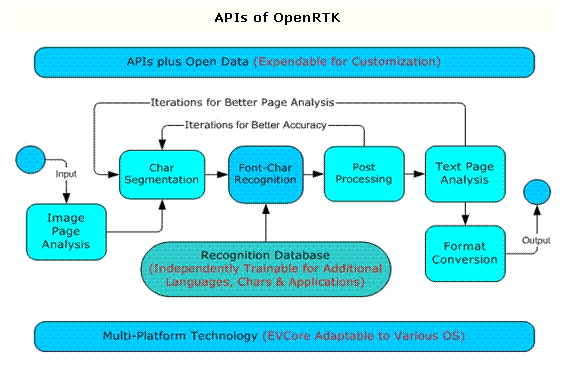
Basic APIs of OpenRTK
1) Doc-Image Acquisition
- Read image from files or scanning buffer into memory
- Read multiple image file formats
- TIFF uncompressed, pack bits, G3, G4
- PCX, DCX, BMP
- JPEG, JPEG 2000
- Image lock/unlock for massive image data handling
- Images are stored in memory or temp file
- Application can load image to memory by lock image operation
- Application can unload image to temp file by unlock
- Images in thousands can be handled using minimum mem
- Multiple images per page
- Color/Grey image
- B/W image
- Thumbnail image
2) Image Pre-Processing
- Image conversion from color/grey to binary
- Auto orientation and auto de-skew
- Book handling
- Gap detection
- Page Splitting, etc.
- Line detection and optional removal
- Noise detection and de-speckling for OCR
3) Layout Analysis/Locating
- GTS – Graphics/Text/Table Regions Separation and Ordering
- Document layout analysis
- Form layout analysis
- Graphic & text separation
- Reading order analysis
- Normal, Force Single Column
- Template method
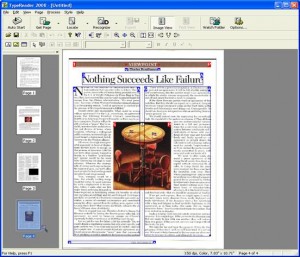
4) Char/Font Recognition
- Font: Extract and keep right information of fonts in text region
- Char: Higher Text Recognition accuracy with font information
- Iterative “Segmentation – Recognition – Post-processing” for best accuracy
- Further enhanced recognition by other proprietary techniques
- Example – Handling 2,600 Fonts
- RTK.DB – organized character shape information of 2,600 fonts
- Identify font(s) of a given text region
- Recognize characters with the tree classifier for the identified font(s)
- Super fast and accurate algorithm – see QR Wang’s IEEE papers in 80s
5) Proofing Information
- Font Style of the Text Region
- Coordinates of Recognized Chars, Words, Lines & Paragraphs
- Marks for Operator’s Attention (best performed in UNLV Competition)
- WYSISWYG as in TypeReader® & TextProofer®
- Correct OCR result to 100% accuracy
6) Formatting & Export
- Save recognition result in common formats
- ASCII Text, CSV
- Microsoft Excel & Lotus 1-2-3
- Microsoft Word, RTF & WordPerfect
- HTML
- Various PDF Formats
- And more advanced PDF Settings
- Watermark
- Encryption
- Thumbnail
- Meta data
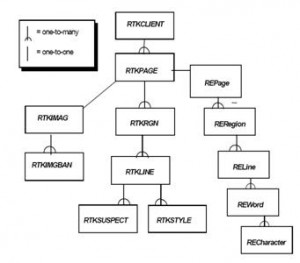
7) Internal Data Opening & RTK Object Model
- RTKClient = Document
- RTKImage = Image
- RTKPage = Page
- RTKRgn = Paragraph
- RTKLine = Line
- REWord = Word
- RECharacter = Character
Eight Steps to OCR
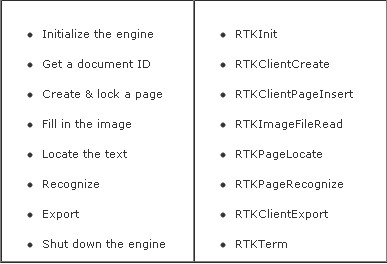
Options in OpenRTK
- Combinations of Available Options
- 10+ Optional Formats to Import
- 4 Options of Image Processing
- 2 Options of Layout Analysis
- 4 Options of Char/Font Recognition
- 10 Optional Format in Export
- Template & Small Region Recognition
- Cater various Doc & Form OCR needs
More APIs Available
- Basic APIs for fundamental OCR applications
- Extended APIs to support applications like TypeReader®
- Advanced APIs for more convenient RTK integration
- APIs customization available on client’s request
OpenRTK 6.0/7.0 Runtime Licensing
The Runtime License is a convenient way for any eligible licensee to integrate ExperVision® OpenRTK® 6.0/7.0 into their application software, release and distribute the application in the market, or deploy this software within their organization for internal use.
When Will You Need OpenRTK® 6.0/7.0 Runtime License?
- Are you developing an application for distribution which requires OCR/OMR/Barcode/MICR technology?
- Are you planning to deploy your OCR application within your organization on desktops and/or servers?
- Are you planning to deploy your OCR application for subscribed service provided to web users?
If your answer is “Yes”, please read the following or send an email to our OCR Consultant Team.
What is an Eligible Licensee?
An eligible Licensee is any organization in areas which are not prohibited from technology exports as mandated by US law. Licensees integrate OpenRTK® with their application and distribute or deploy the application in any of the following ways:
- OpenRTK® Runtime Distribution Licensing – By integrating OpenRTK® 6.0/7.0 into the Licensee’s application code;
- OpenRTK® Internal Deployment Licensing – By integrating OpenRTK® 6.0/7.0 into the Licensee’s Internal Application such as DIM (Document Imaging Management) or FPS (Form Processing System) applications;
- SaaS (Software as a Service) Deployment Licensing – By integrating OpenRTK® 6.0/7.0 into the Licensee’s SaaS platform for the Licensee to run SaaS business;
- OpenRTK® Toolkit Distribution Licensing – By integrating OpenRTK® 6.0/7.0 into the Licensee’s Toolkit code for commercial distribution, which requires an in-depth discussion with our OCR Consultant Team.
Licensee and Customer’s Benefits
- Capable of delivering the entire solution with OCR functionality, which will greatly contribute to the value of Licensee’s products and services.
- Capable of integrating the most stable and ready-to-use OCR SDK, which will decrease Licensee’s research cost, save deployment time and achieve speed-to-market.
- Providing an additional revenue stream or potential margin through the update of OCR engine and providing augmentation & maintenance services.
- Providing first-class R&D service and technical support, helping Licensee to build and maintain stable and long term customer relationships.
- Providing Licensee’s customers more business value, including increase of efficiency, decrease of labor cost and innovation of the business model powered by OCR functions.
How OpenRTK® 6.0/7.0 Runtime Licensing Works?
The Licensee will sign the RSLA (RTK Software License Agreement) for Runtime with ExperVision for the business value listed in the foregoing section.
Signing the RSLA
Licensee needs to sign the RSLA before releasing, distributing or deploying the application which has OpenRTK® 6.0/7.0 integrated. The term of RSLA is one to three years, with a minimum commitment to be paid every year, the higher the commitment, the lower the unit price.
The Application Material Delivering
In order to get the most suitable royalty policy and establish win-win partnerships with ExperVision, Licensee is required to provide a detailed system description or demo of the application, and the user guide.
Royalty Reporting
Licensee is required to submit the royalty report within 10 days after the last day of the quarter on all products that you and your affiliates distributed to your customers or deploy to your users, which have OpenRTK® 6.0/7.0 integrated.
Technical Support and Services
Licensee shall be solely responsible for providing technical support and other services to distributors, resellers or end-users of the Licensee Applications. If Licensee requires assistance solely with respect to the OpenRTK® , ExperVision will make its engineers reasonably available to Licensee by telephone or at ExperVision’s facility during ExperVision’s normal business hours; Licensee shall pay ExperVision at the rate of one hundred dollars ($125) per hour. If the Licensee signs a separate technical support agreement with ExperVision, the licensee will get significantly lower hourly rate for comprehensive technical support service. For detailed information, please contact our Technical Support Team.
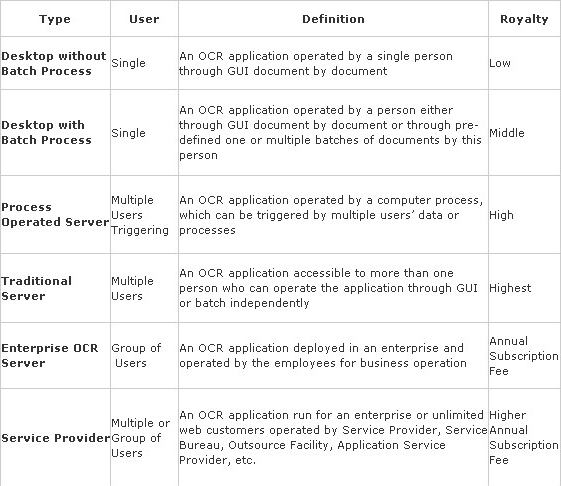
Classification of OCR Applications and Royalty Policy
According to different clients’ requirements for various OCR applications, our OpenRTK® 6.0/7.0 licensing model includes Desktop with or without Batch Processing, Process Operated Server, Traditional Server, Enterprise OCR Server and Service Provider Applications.